# Shopify BFCM Bundle Strategy: Import Bundle Products for AOV
> How to design BFCM bundle products from your existing Shopify catalogue, import them correctly, and use bundle pricing to drive average order value.
- Published: 2026-09-23
- Author: Importier Team
- Category: Store Management / SEO & Discoverability
- Canonical: https://www.importier.app/blog/shopify-bfcm-bundle-import-strategy
---
A sporting goods retailer imported 180 products for BFCM: trail running gear, recovery equipment, and outdoor accessories. After the import, a category manager spent an afternoon identifying three natural pairings: running shoes with compression socks and a hydration pack, trail gear with a navigation watch and headlamp, and recovery equipment combined into a rehabilitation kit. Creating those three bundles manually in Shopify admin took two and a half hours of product record creation, pricing configuration, and description writing.
The following year, bundle selection was done before the import began. The three bundle product records, each priced at a 14 percent discount to the sum of their components, with AI-generated descriptions and correct Compare At prices, were live alongside the rest of the catalogue 35 minutes after the import finished.
BFCM bundles work because they raise the average order value without requiring a customer to navigate to multiple product pages and manually add items. A bundle is a single purchase decision at a price point that appears to justify itself. The question is not whether to create bundles for BFCM. It is when to create them and how to set them up so that pricing, descriptions, and inventory are correct from the moment they go live.
## Bundle Product Design Before Import
The bundle design work happens at the planning stage, not after import. Planning before import means you know what product handles will exist, what prices your components will carry, and what the bundle discount needs to be to produce a retail price that positions well against the comparison point.
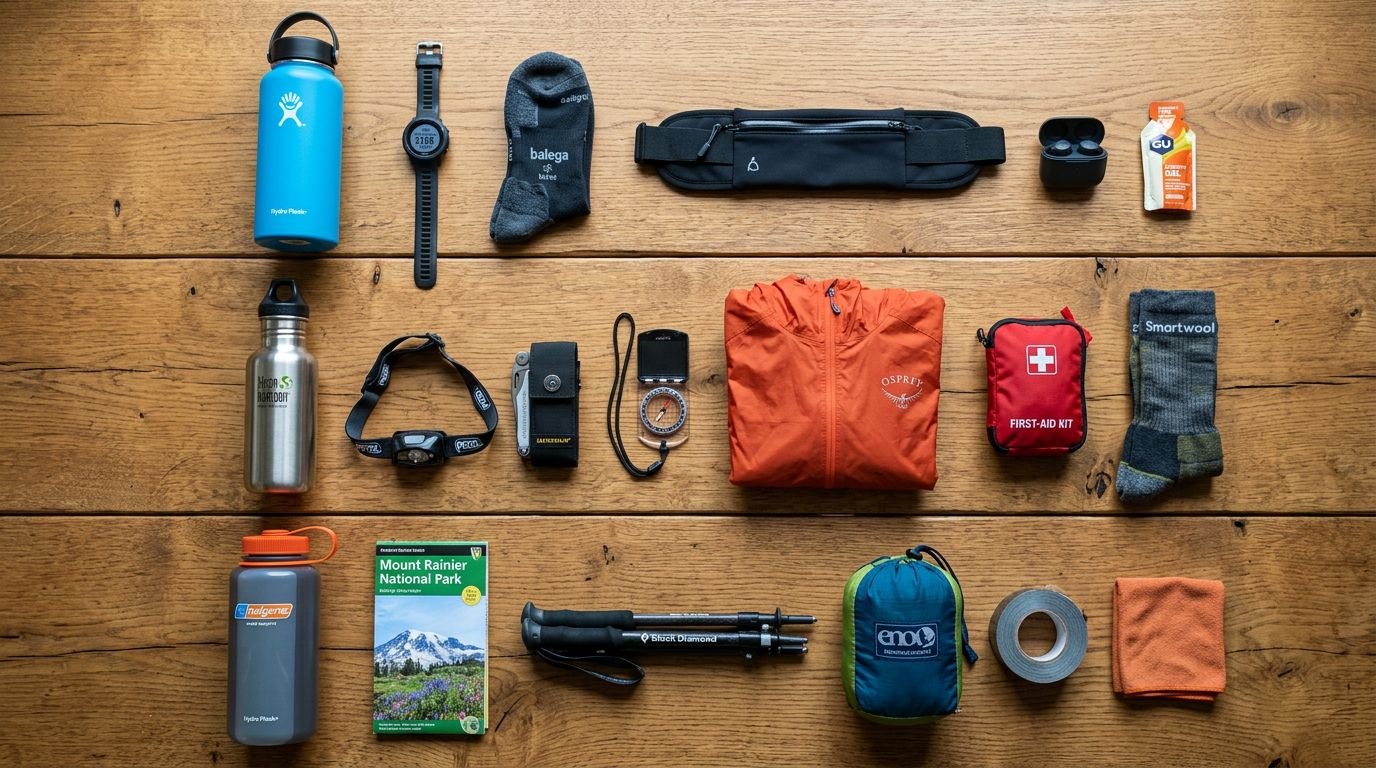
Three principles guide BFCM bundle design. First, bundles work best when the components have a clear shared use case: they are used together by the same person at the same time. A trail kit that packages a navigation watch with a headlamp and a trail pack is a purchase decision a trail runner has already made conceptually. A bundle of unrelated products at a discount is just a price promotion. Second, the bundle price should be set as a meaningful saving off the sum-of-parts, typically 10 to 20 percent, which is visible in the Compare At price display. Third, the bundle should have a name that describes the use case, not the components: "Trailblazer Kit" converts better than "Trail Pack + Navigation Watch + Headlamp Bundle."
For BFCM catalogues, the three most productive bundle categories are: category starter kits (a primary product with the accessories a new buyer needs to use it), gift sets (related products at a gift-appropriate price point with packaging instructions), and premium upgrade bundles (a base product paired with its premium accessories for buyers who want the complete setup).
Bundle design is a pre-import planning exercise. If you know the component handles and prices before you start the import, you can create bundle product records in the same import session rather than a separate manual pass after the fact.
## What a Shopify Bundle Product Record Contains
A Shopify bundle product is a separate product record, not a variant of its components and not a product combination in a cart. This distinction matters at import because it determines how you structure the product file.
The bundle product record contains: its own product title and description, a price (the discounted bundle price), a Compare At price (the sum of the component retail prices), a product type, vendor, tags (including a bundle identification tag for collection and app recognition), and optionally a metafield column referencing the component SKUs for bundle-aware fulfilment apps.
The inventory approach is a choice between dedicated bundle inventory (a separate stock count for the bundle, decremented when the bundle sells) and component-derived inventory (managed by a bundle inventory app that decrements component stock when the bundle sells). For BFCM bundle imports, dedicated inventory is simpler: you allocate a fixed quantity of bundles and import that number as the bundle's own inventory. Component-derived inventory requires a third-party app configuration that is outside the import scope.
The [bundle product CSV structure](https://importier.app/blog/shopify-bundled-product-import) covers the full technical format, including the metafield namespace for component references. The rest of this article focuses on the BFCM-specific decisions: bundle pricing, description strategy, collection structure, and timing.
## Bundle Pricing and the Compare At Display
The Compare At price on a bundle product is the proof of the saving. It should equal the sum of the component retail prices, not a rounded approximation and not the sum of sale prices during BFCM.
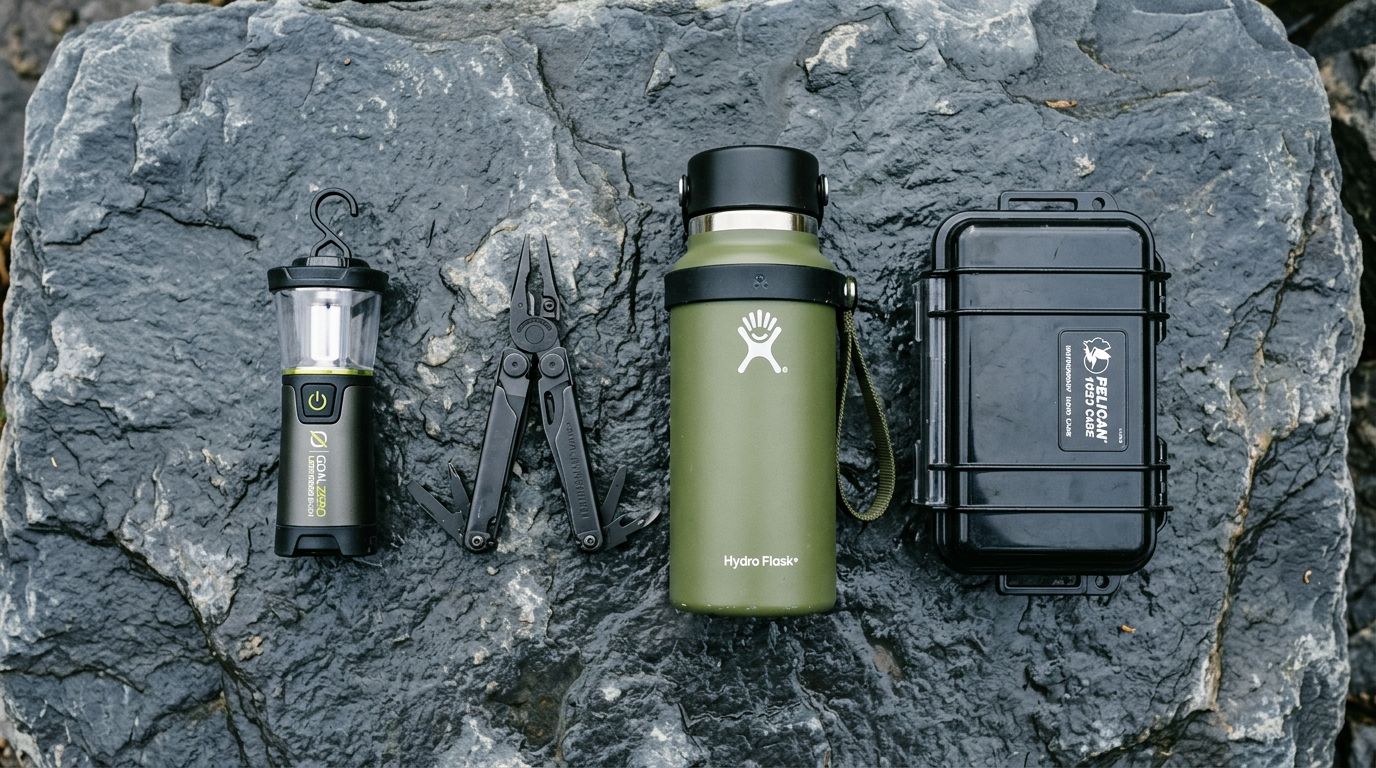
A bundle containing three products at $65, $45, and $35 has a sum-of-parts of $145. The bundle price at a 15 percent discount is $123. The Compare At price is $145. The product listing shows "Was $145, Now $123" which communicates the saving clearly and accurately.
The error to avoid: setting the Compare At price to the sum of already-discounted component prices during BFCM. If the components are each on sale, using their sale prices as the Compare At baseline produces a bundle that appears to save only the bundle discount, not the bundle discount on top of the component savings. The correct approach is to use the original RRP of each component as the Compare At basis, regardless of what the components are priced at during the promotional period.
The [BFCM catalogue audit](https://importier.app/blog/shopify-bfcm-catalogue-audit) covers the full compare-at price audit process. Running that audit across your bundle products after import is a three-minute check that prevents a misleading pricing display on launch day.
The bundle Compare At price should be the sum of component RRPs, not the sum of current BFCM sale prices. The saving displayed to the buyer needs to reflect the genuine combined value of what they are getting.
## Writing Bundle Descriptions That Convert
A standard product description answers "what is this?" A bundle description answers "what will I be able to do after this purchase that I could not do before?"
The component list is not the description. Listing three products and their specifications does not tell a buyer why they should buy the bundle rather than each product separately. The description needs to open with the use case, establish the saving, and close with the occasion or context in which the bundle makes sense as a gift or a purchase for the buyer themselves.
For BFCM, the description for the "Trailblazer Kit" might open: "Everything a trail runner needs for the first serious season. This kit brings together navigation, light, and load-carrying in one purchase at a price that makes the complete setup more accessible than buying separately." The components are named later in the description as specifications, not as the lead.
Importier's AI generation supports this framing through the Benefits-First description style, which opens with the outcome and benefit before listing features or specifications. Applying Benefits-First with a context note such as "This is a BFCM bundle product; lead with what the buyer gains from the complete set and mention the saving compared to buying individually" produces bundle-appropriate language across the entire set without individual product edits.
The 156 expert personas include outdoor, sports, fitness, and lifestyle personas. For gift set bundles, applying a gift writer persona produces occasion-first language aligned with how BFCM buyers frame bundle purchases. For technical or gear bundles, a category specialist persona produces specification-aware copy that explains compatibility between components. The [Cyber Monday collection setup](https://importier.app/blog/shopify-cyber-monday-product-setup) covers the description tone differences between BFCM events; bundle descriptions share the Cyber Monday emphasis on deliberate value over impulse framing.
## Bundle Collections and Visibility Control
Bundle products need two collection memberships: a permanent bundle collection for year-round visibility (populated by the bundle identification tag) and a BFCM-specific campaign collection (populated by the `bfcm-bundle-2026` tag).
The permanent bundle collection rule "product tag contains `bundle`" creates a browseable bundle section that persists after BFCM ends. This is valuable for gift seasons where the same bundle products may be relevant again. Adding a second tag at import means post-BFCM, removing the `bfcm-bundle-2026` tag via a re-import removes the products from the BFCM campaign collection while keeping them in the permanent bundle collection.
For Draft status management, Scale and Enterprise plans have Scheduled Imports that can be used to automate the publish timing. Setting a bundle import to run at 00:01 AEST on the morning of Black Friday, with Publication Status set to Active, removes the manual publish step entirely. Growth plan merchants use the Shopify admin bulk publish action: filter by `bfcm-bundle-2026`, select all, Actions, Set as active.
The [BFCM stock import workflow](https://importier.app/blog/shopify-bfcm-stock-import) covers the three-pass import structure for the full BFCM catalogue. Bundle product creation fits into that workflow as a fourth pass: component products are imported first (Pass 1), inventory is set (Pass 2), pricing is confirmed (Pass 3), and then bundle products are created with component handles verified and pricing locked in.

## Bundle Inventory and Post-BFCM Cleanup
Setting bundle inventory at import requires a quantity decision: how many bundles can you fulfil given the component stock on hand? For dedicated bundle inventory, the bundle product carries its own stock count at import. A running kit bundle with 20 units means Shopify will allow 20 bundle purchases before displaying out of stock, independent of what the component inventory shows.
For seasonal BFCM bundles using dedicated inventory, the post-season cleanup is a two-step re-import: set the bundle product inventory to zero (to remove it from available stock) and either delete the product or set it to Archived status via the import file's Status column. Archiving is preferable to deletion if you plan to reactivate the same bundle the following year, since archived products retain their handle, description, and configuration.
Bundles that run out of stock during BFCM can be replenished via the Pricing export preset for an inventory update: export the bundle products, update the inventory column to reflect received component stock, and re-import in update-existing mode. The same process used to restock component products in [the BFCM stock import workflow](https://importier.app/blog/shopify-bfcm-stock-import) applies directly.
According to [Shopify's bundle product documentation](https://help.shopify.com/en/manual/products/bundles), bundle products created as separate product records work with all standard Shopify sales channels including Online Store, Shopify POS, and Shopping integrations. This means a bundle imported and published via Importier appears on Google Shopping automatically, provided its product data (GTIN, category, images) meets the standard Shopping feed requirements.
The three bundles the sporting goods retailer created their second year were live 35 minutes after the import finished because the planning work had been done before a single product was touched. The bundle product rows were in the import file alongside the components. The Compare At prices were calculated in the spreadsheet before upload. The descriptions were generated from the imported bundle records in a single batch. The only manual step on launch morning was a filter by `bfcm-bundle-2026` and a bulk publish action. The bundles accounted for 18 percent of BFCM revenue at an average order value 38 percent higher than single-product purchases.
Try Importier free at importier.app.